How to Set Up a Signal Account Without Your Personal Phone Number
Understand when a separate Signal number helps, then follow VerifyNumber account, funding and SMS steps with screenshots and clear account-access caveats.
Want to use Signal without registering your everyday phone number? First decide whether you need a different registration number or simply more privacy from new contacts. This guide explains that choice, then walks through VerifyNumber account setup, funding, number selection and Signal’s SMS flow.
Before purchasing, check the number’s access period and whether it suits an account you intend to keep. A temporary verification session does not establish permanent number ownership, and a rental does not guarantee Signal will accept every number. Already have a VerifyNumber account and sufficient funds? Skip the setup steps you have completed.
TL;DR
- Choose your privacy goal. Signal usernames and phone number privacy settings may be enough if you only want to avoid sharing your number with new contacts.
- For a separate registration number, create your VerifyNumber account, add funds if needed, then choose a rental duration and review the current charge.
- Complete verification. Enter the assigned number in Signal, check the VerifyNumber session for the SMS code, and finish setup if verification succeeds.
- Plan for future access. A temporary SMS session does not mean permanent number ownership or guaranteed Signal acceptance. Check access conditions before purchasing, and maintain control of the registered number for long-term use.
Why Create a Signal Account Without Your Personal Number?
You may want to keep a number used by family, work or everyday services separate from the number you register with Signal. For example, someone arranging a community project might prefer a dedicated contact number they can keep after the project begins. The useful benefit is choosing which number serves that role, rather than automatically using your main line.
If your concern is simply what new contacts can see, start with Signal’s phone number privacy settings and usernames. You can share a username to start a conversation without handing over your number. That may meet your needs without buying another number; it does not make someone forget a number they already know.
A temporary number needs a different decision: will you still control it when you need the account later? Signal recommends maintaining ownership of your registered number. A short SMS session is not evidence of that continuing ownership. Before using VerifyNumber, check the current offer’s access conditions and decide whether they suit the account you intend to keep.
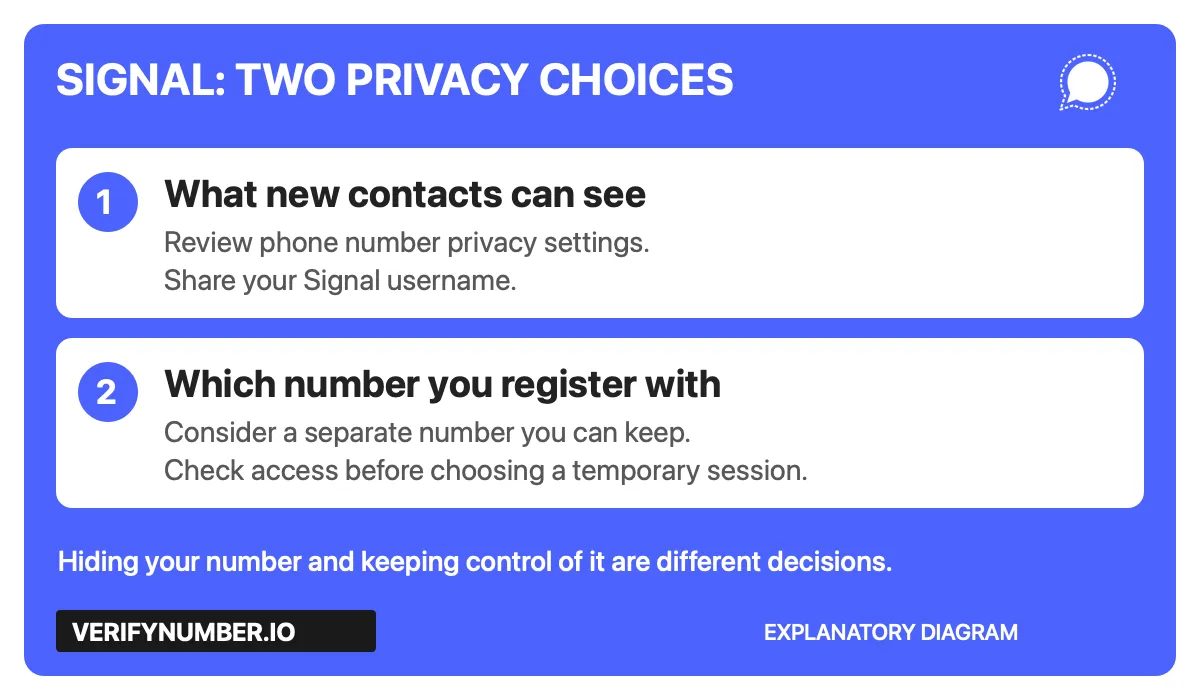
Choose based on your goal. This original diagram explains the decision; it is not a Signal app screenshot.
Step 1: Open Your VerifyNumber Account, If Needed
Open VerifyNumber and sign in to your own account. If you are new, follow the account-access instructions shown. Existing users can skip completed setup. These steps are optional if Signal offers a suitable route that does not require another number, or you already have a number you can keep.
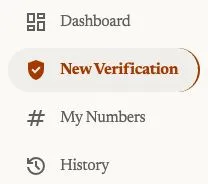
Current account navigation, captured October 23, 2026. Open New Verification to review a rental; My Numbers is the entry point for your rented numbers.
Step 2: Review the Rental Cost and Your Wallet
Review the rental duration and price before adding money. Rentals are paid from your wallet before a number is assigned, as explained on VerifyNumber Support. If your balance is insufficient, use Top up wallet and check the amount and payment terms displayed. An existing balance may already cover the rental.

Current wallet entry point, captured October 23, 2026. This crop does not show a payment or establish a minimum deposit.
Confirm the current fees and credits terms before paying. A rental fee does not guarantee that Signal will accept the assigned number or send a code.
Step 3: Choose a Duration and Get Your Number
Open New Verification. Under Choose how long you need it, review the 10 minutes and 1 month options. The current flow does not ask you to select Signal or any other service. One active rental can receive SMS sent to its number from different apps and websites during its access window.
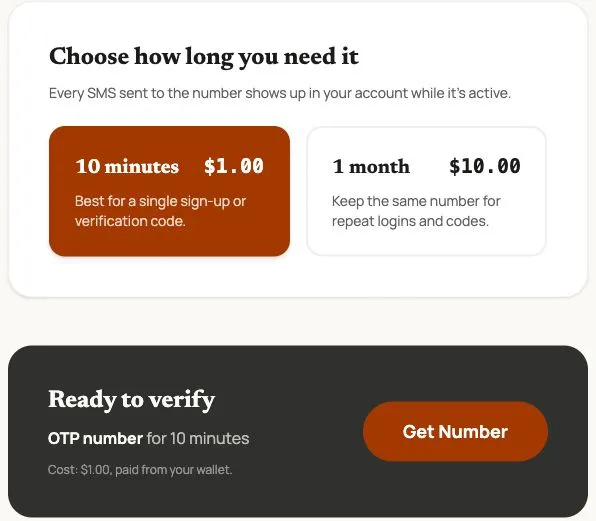
Actual VerifyNumber screen captured October 23, 2026. Prices are dated examples; review the live charge. This is a rental-selection screen, not proof of Signal acceptance or SMS delivery.
Choose the duration that fits your task, review Ready to verify, and use Get Number only when ready to start the paid rental. After assignment, check the complete number, country code and expiry, and keep the rental accessible while following Signal’s verification prompts.
No service selection does not mean universal acceptance. Signal controls its number requirements and account checks. A month-long rental is still time-limited; confirm extension and retention conditions before relying on it for later logins. For a lasting account, prioritize continuing control of its contact methods.
Step 4: Enter the assigned number in Signal
Install or update the official Signal app on your Android or iOS device. Begin registration, review the app’s terms, and enter the number assigned to your active rental, including the correct country code. Confirm the number before requesting verification.
Signal’s official registration instructions explain the SMS flow and manual code entry. They also describe a call option, but do not assume your VerifyNumber session receives calls: confirm that your rental supports the required receiving method.
Step 5: Read the SMS in Your Active Rental
Return to the number’s rental page in VerifyNumber, using My Numbers if needed. Check its status and incoming messages. When the Signal verification message arrives, enter its code only in the Signal registration flow you initiated. Keep that code private.
If no message arrives, check the digits and country code, confirm the rental is active, and follow Signal’s wait instructions. A new rental or extension does not establish access to an earlier number. For rental-side issues, use VerifyNumber Support rather than repeatedly buying another number.
Step 6: Finish Signal setup and protect future access
Follow Signal’s remaining profile and account prompts. For a phone-based account, Signal’s account protection guidance recommends maintaining ownership of the registered number and enabling registration lock. Decide whether your number arrangement supports that requirement before relying on the account long term.
A Signal PIN is not a chat backup and cannot restore lost message history. Keep account credentials private and review backup arrangements separately.
To limit what new contacts can see, review Settings > Privacy > Phone Number and consider sharing a username. Signal’s privacy and username documentation distinguishes number visibility from number-based discovery. These settings do not erase a number someone already knows.
When you might not need another number
If your goal is only to avoid sharing your existing number with new contacts, Signal’s username and privacy controls may be sufficient. Signal also documents a separate phone-numberless Android beta route, with its own availability and account-key requirements. Check the current documentation before choosing that route.
For other messaging apps, see our Telegram setup guide and WhatsApp setup guide. Their signup rules are separate from Signal’s.
Why Choose VerifyNumber Over Free Public SMS Inboxes?
The practical reason to consider VerifyNumber is its guided workflow: choose a rental duration, review your wallet and follow the active number. A free inbox that anyone can open also exposes the messages displayed there, which matters when those messages contain account verification codes.
Compare the actual setup before choosing either route:
| What matters | Free public inbox | VerifyNumber workflow |
|---|---|---|
| Choosing access | Check whether you control the number and how long it remains available. | Choose a rental duration without selecting Signal or another service. |
| Following the SMS | Check who else can open the inbox and read its messages. | Use the number’s Messages panel in your account; confirm the rental’s access and retention terms. |
| Keeping the account later | Establish whether you can retain access to the same number. | Check the session duration and future-access conditions before purchasing. |
Paying for a number does not by itself establish Signal acceptance, faster delivery or permanent ownership. Choose based on the access conditions you need, not the price alone.
Additional Benefits of Using VerifyNumber for Signal
- Choose access by duration. New Verification offers a rental-period choice without a platform catalog. Review the current cost before proceeding.
- Keep the rental in view. Open your rented number from My Numbers and check its status while you wait for the SMS. Only messages actually sent to the active number can appear.
- Review funding before continuing. Account funding and wallet controls let you check the next payment step before selecting a number. Confirm the live amount rather than relying on the captured example.
These are practical interface benefits shown in the screenshots. For an account you intend to keep, continuing control of the registered number remains a separate consideration.
Wrapping Up
The sequence is straightforward: create your VerifyNumber account, fund it if needed, choose a duration and obtain a number. Continue in Signal, return to the number’s Messages panel for the verification SMS, and finish the app’s setup.
Before purchasing, confirm the current offer and how long you can access the number. If that arrangement fits your needs, start with the VerifyNumber account steps above.
Need more help? Visit VerifyNumber Support or email support@verifynumber.io. If something goes wrong with your rental, our team will review the issue and help you work through the next steps. Share the rental ID and relevant error, never your password or verification code.